Multiple audiences and segmentation
By default, every email you send goes to all active subscribers on your email list.
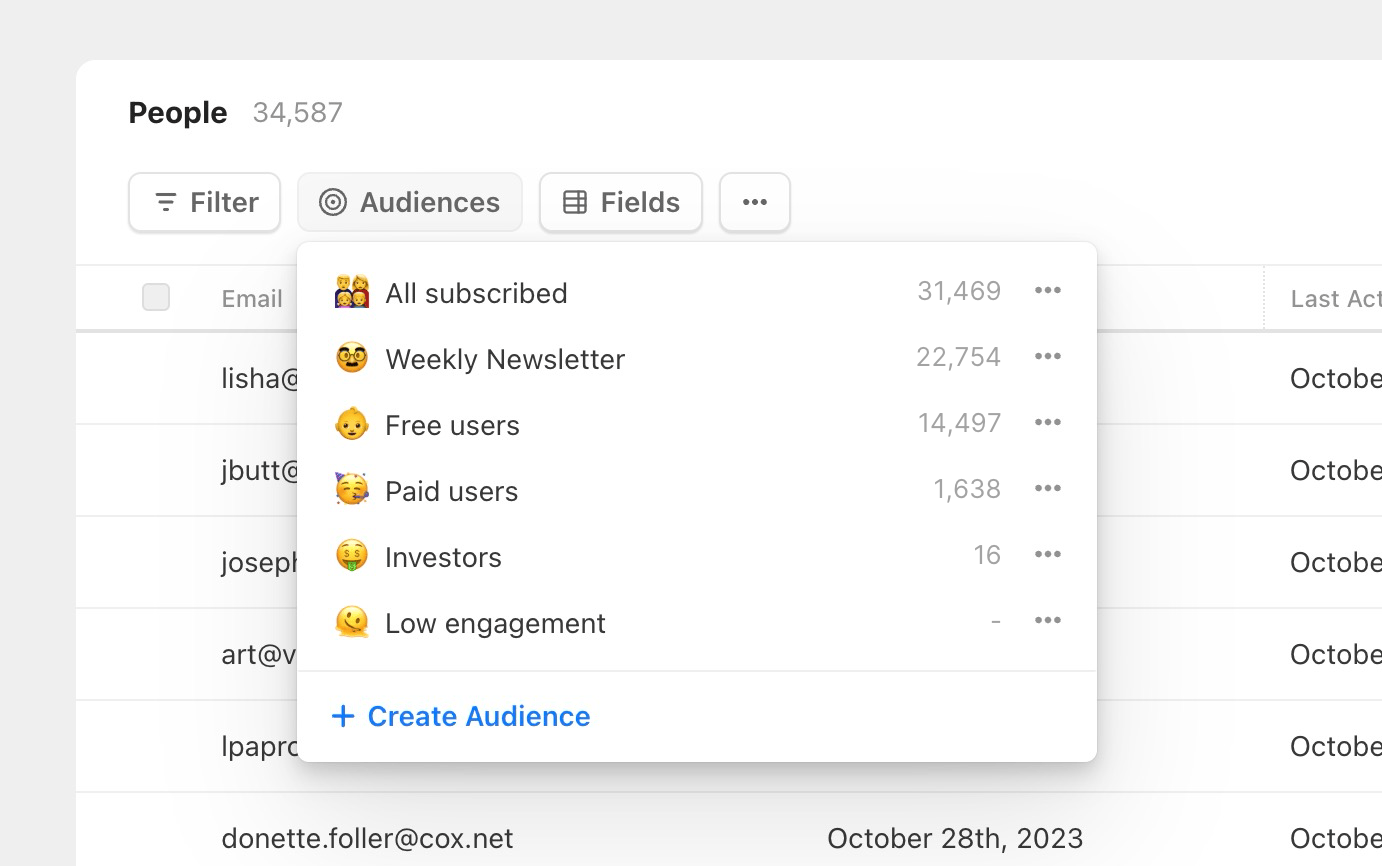
However, as you grow, you'll eventually need to send different emails to different groups or segments within your list. We call these "audiences."
Some segmentation examples
You may want to send different emails to people based on their answers to questions in your forms, or what page of your site they signed up from.
Or, if you're a Software company, your email list may contain both users of your product and outside prospects (who signed up for updates from a blog post). You'll probably want to avoid sending sales-y emails to already paid users.
Audiences can be totally separate OR overlapping.
How to create an audience segment
To create a custom audience, head to the People tab. Start by by clicking Filter.
From here, you can segment your list using powerful conditional logic. You can filter on:
- Tags
- Any field: email, name, or any custom field you've created
- Source: which form, import, or integration a contact came from
- Created date and last activity date
- Open rate and click rate
- Email activity: people who opened, clicked, received, or didn't open/click one specific email (this is how you "resend to non-openers")
- A combination of any of the above
Each condition uses an operator that fits its type. Text and tags support is / is not / includes / does not include / is set / is not set; dates support within the last N days / is after / is before; and numbers support equals / greater than / less than.
How AND vs OR works: The first condition starts with "Where," and each condition after it lets you pick AND or OR. That connector applies to the whole filter, so a single audience is either all-AND ("match every condition") or all-OR ("match any condition"). To combine both kinds of logic, build two separate audiences.
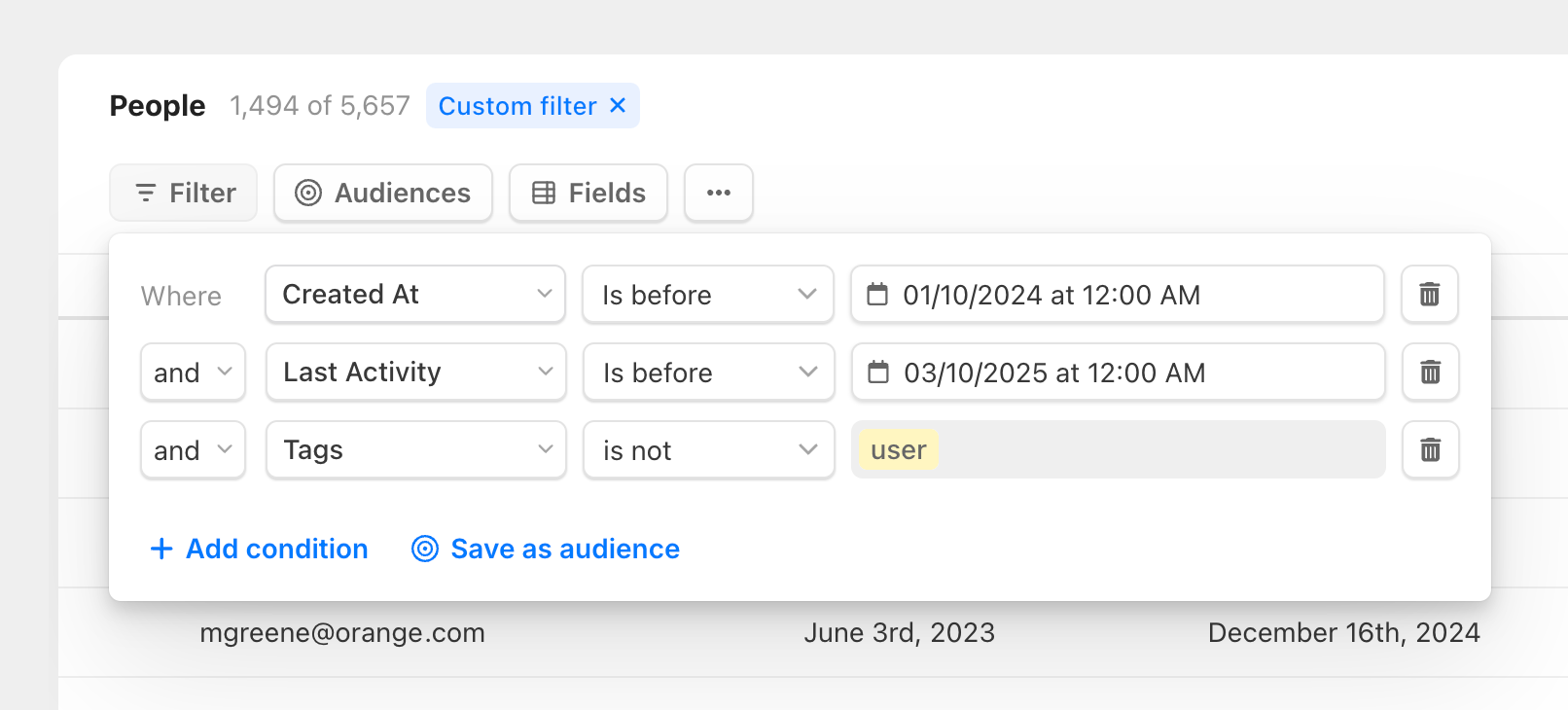
In the image below is an example of creating an audience of non-engaged subscribers. It finds people who were added over a year ago AND who haven't been active for X months AND who aren't users. Great for list cleaning.
Once you click "Save as audience," this filter now becomes a permanent audience.
Audiences are dynamic and can be automation triggers
Once you save a filter as an audience, it's now dynamic and will sync people in and out as their properties match your conditionals.
This can be super powerful when combined with Automations. If you create an automation with 'User enters audience' or 'User leaves audience' as the trigger, when the user matches/unmatches from the conditionals you've set in your audience, they will start your sequence.
Sending email blasts to a specific audience
All of the audiences you've set up will appear in the publisher when you're ready to send. Simply select the audience you'd like to receive your email, and send!