To cancel Constant Contact, call Billing Support before your next billing date (855-229-5506 in the US and Canada) with your username and reason, or use the online option under Account settings, Billing if your account shows it. Cancellation takes effect on your next billing date, and Constant Contact only guarantees to keep your data for 30 days after that, so export every contact and your unsubscribes first. If you're moving to another platform, Audienceful takes the CSV and verifies addresses on import; our guide to importing a list without landing in spam covers the order.
We make Audienceful. Constant Contact's steps and policies below come from its cancel your account article (updated 28 October 2026), its pause article, its billing FAQ and its export guide, all checked 14 November 2026.
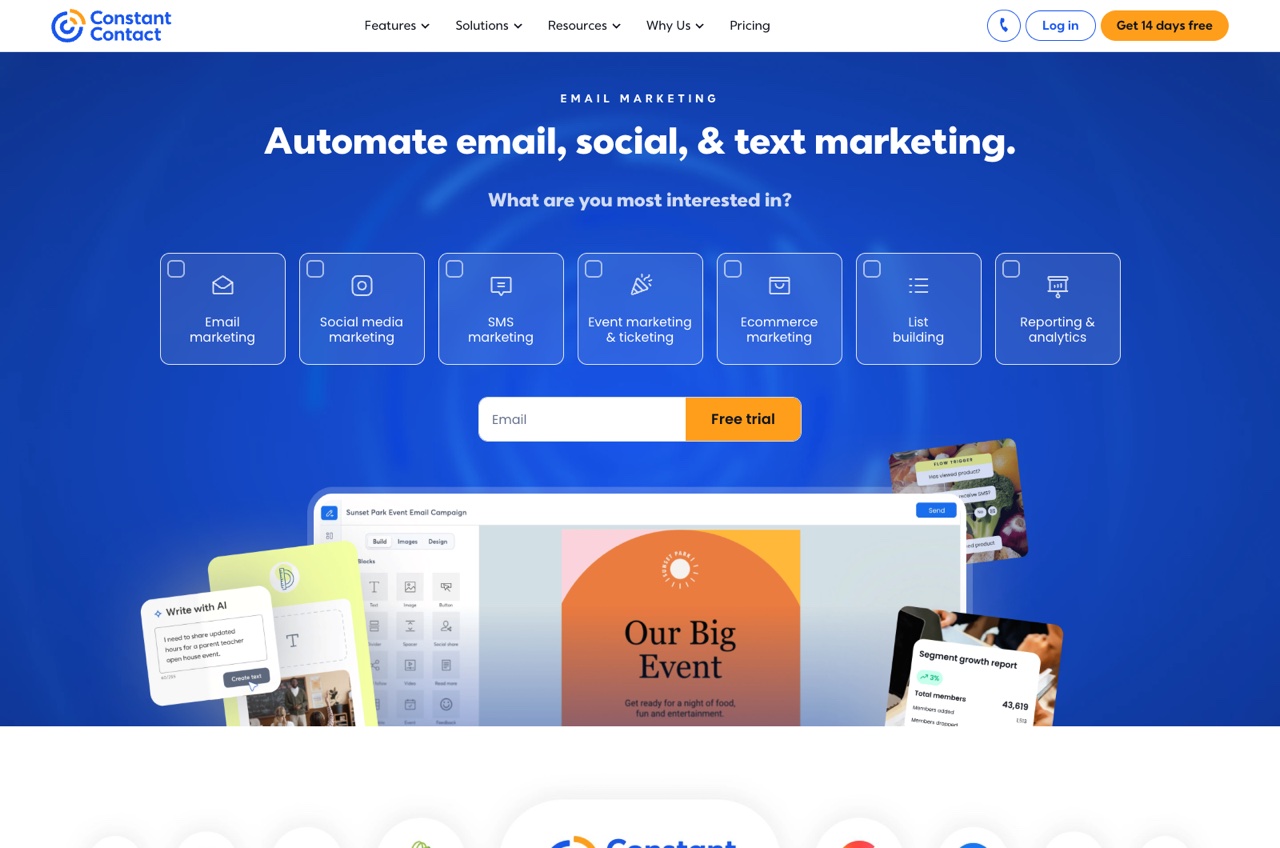
Constant Contact's website, from our competitor screenshot library. Not an in-app screen.
How to cancel Constant Contact: the short version
- Export all contacts, including unsubscribed and bounced ones (steps below).
- Save your templates, reports and any engagement segments you want to keep.
- Move your list and rebuild your key automations on the new platform.
- Call Constant Contact Billing Support before your next billing date, or cancel online if your account shows the option.
- Watch for the confirmation email, which arrives within 24 hours.
| Region | Billing Support number |
|---|---|
| US and Canada (toll-free) | 855-229-5506 |
| UK (toll-free) | 0808-303-1966 |
| Everywhere else | +1 781-472-8120 |
Have your account username and your reason for cancelling ready. Expect a retention offer on the call. If you're still in your free trial, you don't need to cancel. It ends on its own.
Cancelling online
Constant Contact's billing FAQ says some accounts can cancel online, and that others won't see the option because of their plan or account status. Where it exists, it sits under Account settings, the Billing tab, then Manage plan, followed by the on-screen prompts. If you don't see it, call.
What cancelling stops and deletes
| What happens | |
|---|---|
| Access | You keep using the account until your next billing date |
| Sign-up forms, integration syncs, automated emails | Stop when the cancellation takes effect |
| Contacts, emails and reports | Kept for at least 30 days, then may be permanently deleted |
| Prepayments and credits | Non-refundable and surrendered |
| Automation series | Must be copied again if you reactivate |
| Reactivation | Possible within the retention window, with your data as you left it |
Constant Contact guarantees storage for 30 days after cancellation. After that, an inactive account enters a queue for purging, and its billing FAQ says it emails you at least 30 days before purging. Don't count on the second window. Export first.
Pause instead of cancel?
If you only need a break, Constant Contact lets the Account Owner pause the account for a small monthly fee under Account settings, Billing, Manage plan, or by calling Billing. Chat can't pause an account. The pause starts on your next billing date. If cost is why you're leaving, check what to do when Constant Contact is too expensive first.
While paused, contacts, lists, reports and the image library stay, sign-up forms keep collecting, and legacy welcome emails still send. Live emails, test emails, automations and event invitations stop. Add-ons like SMS are cancelled, and SMS numbers are forfeited immediately. You can't unpause and re-pause in the same invoice cycle.
Pausing makes sense for a seasonal business coming back in spring. If you're leaving, cancel.
What transfers to a new platform and what doesn't
| Item | Transfers? | How |
|---|---|---|
| Contacts and email addresses | Yes | CSV or Excel export |
| Lists | Yes | Export list by list, or as a column |
| Custom fields | Yes | Select them in the export overlay |
| Unsubscribed contacts | Yes | Filter by status and export separately |
| Permission status | Yes, if enabled | Turn on Advanced Email Permissions before exporting |
| Templates | No | Save HTML or screenshots, then rebuild |
| Automations and paths | No | Screenshot and rebuild |
| Sign-up forms and landing pages | No | Rebuild and swap the embed code |
| Event, survey and social tools | No | Replace separately |
| SMS numbers | No | Plan for a new number |
| Reports | No | Download what you need as a baseline |
Step 1: Audit your account
Before exporting, write down what's running:
- Every list and roughly how many contacts each holds
- Every active automation, its trigger and its emails
- Every sign-up form and landing page, and where each is embedded
- Every integration: Shopify, WooCommerce, a CRM, Zapier
- Any SMS program and its number
- Any events or surveys still taking registrations
That list becomes your rebuild plan.
Step 2: Export contacts by status
From Constant Contact's export guide:
- Open the Contacts page.
- Filter by email status. Start with your active, subscribed contacts.
- Select the contacts. To take everyone in the filter, select one and click Select all contacts.
- Open Actions and choose Export selection.
- Tick the fields you want. Take all of them, including custom fields.
- Click Export, then download the file from your import/export activity.
Repeat for unsubscribed contacts and for bounced contacts. Keep each in its own file. The unsubscribed file is the one people forget, and it's what stops your new platform from emailing people who opted out.
If you need permission status in the file for GDPR or CASL, turn on Advanced Email Permissions before exporting. Without it, the export leaves permission status out. Exporting doesn't delete anything from Constant Contact.
Step 3: Export engagement tiers for warm-up
Your first sends from a new domain or platform should go to people who open. Build three segments in Constant Contact before you leave:
- Most engaged: opened or clicked in the last 90 days
- Somewhat engaged: opened in the last 91 to 180 days
- Least engaged: no opens in 180 days
Export each as its own file, or add a column that marks the tier. On the new platform, tag contacts with their tier so you can mail the most engaged first.
Step 4: Save templates and reports
Templates don't move between platforms. Open each email you'll reuse, save the HTML if your editor offers it, and screenshot the layout. Save your logo and images separately. Download campaign reports for your best-performing emails so you have open and click baselines to compare against.
Step 5: Authenticate your domain on the new platform
Set up SPF, DKIM and DMARC on the new platform before your first send. On Audienceful, the custom domain guide walks through the DNS records. Don't remove Constant Contact's records until you've stopped sending from it.
Step 6: Import with statuses intact
- Import unsubscribed and bounced contacts first, marked as unsubscribed or suppressed.
- Import subscribed contacts with their custom fields and tier tags.
- Pause any automation that triggers on "added to list" during the import, or every imported contact gets your welcome series.
Our list import guide covers the field mapping on Audienceful.
Step 7: Rebuild automations
Rebuild in order of revenue or importance:
- Welcome series
- Abandoned cart, if you sell online
- Post-purchase follow-up
- Birthday and anniversary emails, once the date fields have imported in the right format
Use your Step 1 screenshots for timing and copy. Stores should see our Shopify flow library for ready-made versions.
Step 8: Replace forms and integrations
Swap every embedded sign-up form, update landing page links and disconnect Constant Contact from Shopify, your CRM and Zapier. A forgotten form keeps sending signups into an account that will soon stop syncing.
Step 9: The SMS caveat
Constant Contact's pause article says SMS numbers are forfeited the moment an account is paused, and cancelling ends the add-on too. Assume your SMS number won't move. Tell your SMS subscribers about the new number from the old one while you still can, and collect SMS consent again on the new platform.
Step 10: Warm up, run in parallel, then cancel
- Send your first two or three campaigns from the new platform to the most engaged tier only.
- Add the somewhat engaged tier once bounce and complaint rates look normal.
- Add the least engaged tier last, or send them a re-permission email.
- Keep Constant Contact live, with automations off, until the new flows have run for a week.
- Call Billing before your next billing date and cancel.
Our list warming guide has the volumes. Our migration checklist is a copyable version of this whole process.
What you'll save
Constant Contact's pricing page blocked our check on 14 November 2026. Its plans start at $12 (Lite), $35 (Standard) and $80 (Premium) for 500 contacts, as recorded in our Constant Contact price increase post. For larger lists, the table uses figures ActiveCampaign published from February 2026.
| Contacts | Constant Contact Lite | Constant Contact Standard | Constant Contact Premium | Audienceful |
|---|---|---|---|---|
| 1,000 | $30 | $55 | $110 | Free plan |
| 10,000 | $180 | $210 | $325 | $79 Essentials or $118 Growth, billed yearly |
Constant Contact 1K and 10K figures from ActiveCampaign's comparison page. Audienceful prices from our pricing page, checked 14 November 2026. Essentials runs three automated flows; Growth has unlimited automations.
Where to move
Audienceful (our product) suits Constant Contact customers who want a modern editor and better automation without a big learning curve. The AI agent writes in your brand voice and can draft a campaign or build a segment from a short brief, which helps small teams that relied on Constant Contact templates. Templates come from leading agencies, and the collaborative editor lets several people work on one email. CSV import verifies addresses so bad ones don't hurt your first sends. For stores, the native Shopify app adds ready-made flows with revenue attribution; SaaS teams get native Stripe flows.
If you run ticketed events or surveys in Constant Contact, export registrant and response lists before you cancel, since they stop accepting entries when the account closes.
See Audienceful vs Constant Contact, and industry pages for restaurants and real estate agents. Comparing other options first? Read ActiveCampaign vs Constant Contact and Constant Contact vs HubSpot.
Related guides: Constant Contact alternatives and our Constant Contact review.
FAQs
How do I export contacts from Constant Contact?
On the Contacts page, filter and select the contacts, open Actions, choose Export selection, tick the fields, click Export and download the file from your import/export activity. Turn on Advanced Email Permissions first if you need permission status in the file. Our Constant Contact export guide covers each step and the fields to include.
Can I transfer Constant Contact templates?
Not directly. Save the HTML where you can and screenshot each layout, then rebuild the templates in your new platform's editor.
Will my unsubscribes carry over?
Only if you export them. Filter by unsubscribed status, export that group to its own file, and import it into the new platform as unsubscribed or suppressed before importing anyone else.
Can I keep my Constant Contact SMS number?
Plan on no. Constant Contact says SMS numbers are forfeited immediately when an account is paused, and the SMS add-on ends when you cancel. Set up a new number and collect SMS consent again.
How do I cancel Constant Contact after migrating?
Call Billing Support before your next billing date (855-229-5506 in the US and Canada, 0808-303-1966 in the UK, +1 781-472-8120 elsewhere) with your username, or cancel online under Account settings, Billing if your account offers it. You'll get a confirmation email within 24 hours.
Move your Constant Contact list to Audienceful before you cancel. Start free with a 14-day Growth trial.
